
June 12, 2022
Ubiquiti Unifi AP as Wireshark Monitor
I’ve experimenting with building a custom interface to download/sync pictures from my camera (Canon Rebel T6i) to a laptop. Eventually I’d also like to add remote camera control, but one step at a time. Canon provides an app for iOS and Android, but no libraries of any kind or documentation of the API that I could find. I did come across airnef which claims to support Canon cameras in addition to it’s focus on Nikon hardware, but it’s pretty old, written in python, and I really just wanted to play around with this myself.
So, jumping right in, step one was to take a look at what was going on between the camera and the Canon Camera Connect iOS App.
Setting up the connection
The Rebel T6i supports two modes for WiFi interfacing: Access Point and Infrastructure.
-
In Access Point mode, the Camera acts as its own wireless access point and the phone connects directly to the camera with nothing in between. While we could configure a capture to passively listen in with this configuration, it’s a bit more work to setup and we can make our lives easier by going a different route.
-
In Infrastructure mode, the Camera connects to an existing wireless access point. When connected to the same network as a phone running Canon’s app, all the remote control features are accessible, and routed through the configure network.

You can probably see where we’re going now. If we connect the iPhone and Camera to the same AP, and that AP supports tcpdumps, we should be able to easily capture all of the traffic between the camera and control app, decode protocols, and start to understand the interface.
Configuring Wireshark for Unifi AP Capture
First, we need to have SSH access to our Unifi AP. If using Ubiquiti’s control software, the credentials for remote login of all provisioned APs are located at Settings > Site > Device Authentication. It should look something like the image below for password authentication. If using SSH Keys (which I probably should move this over to), we can work with that too. Just give whichever login scheme in use a try directly in a terminal and make sure you can access SSH.
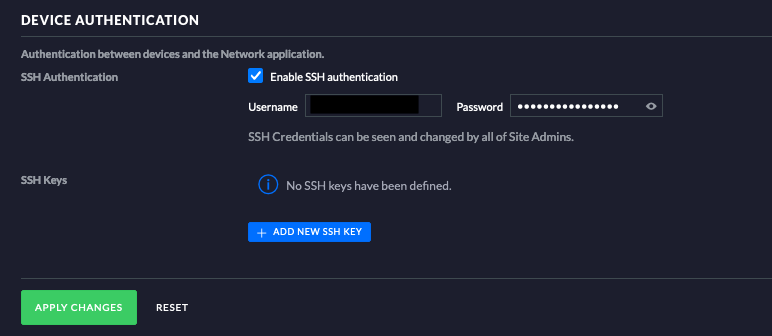
I spent some time trying to get the right tcpdump configuration/SSH tunnel but ended up realizing Wireshark (at least as packaged in distribution) makes this a lot easier with the sshdump plugin. From the Wireshark launch screen, scroll down to the bottom of the interface list and look for SSH remote capture: sshdump
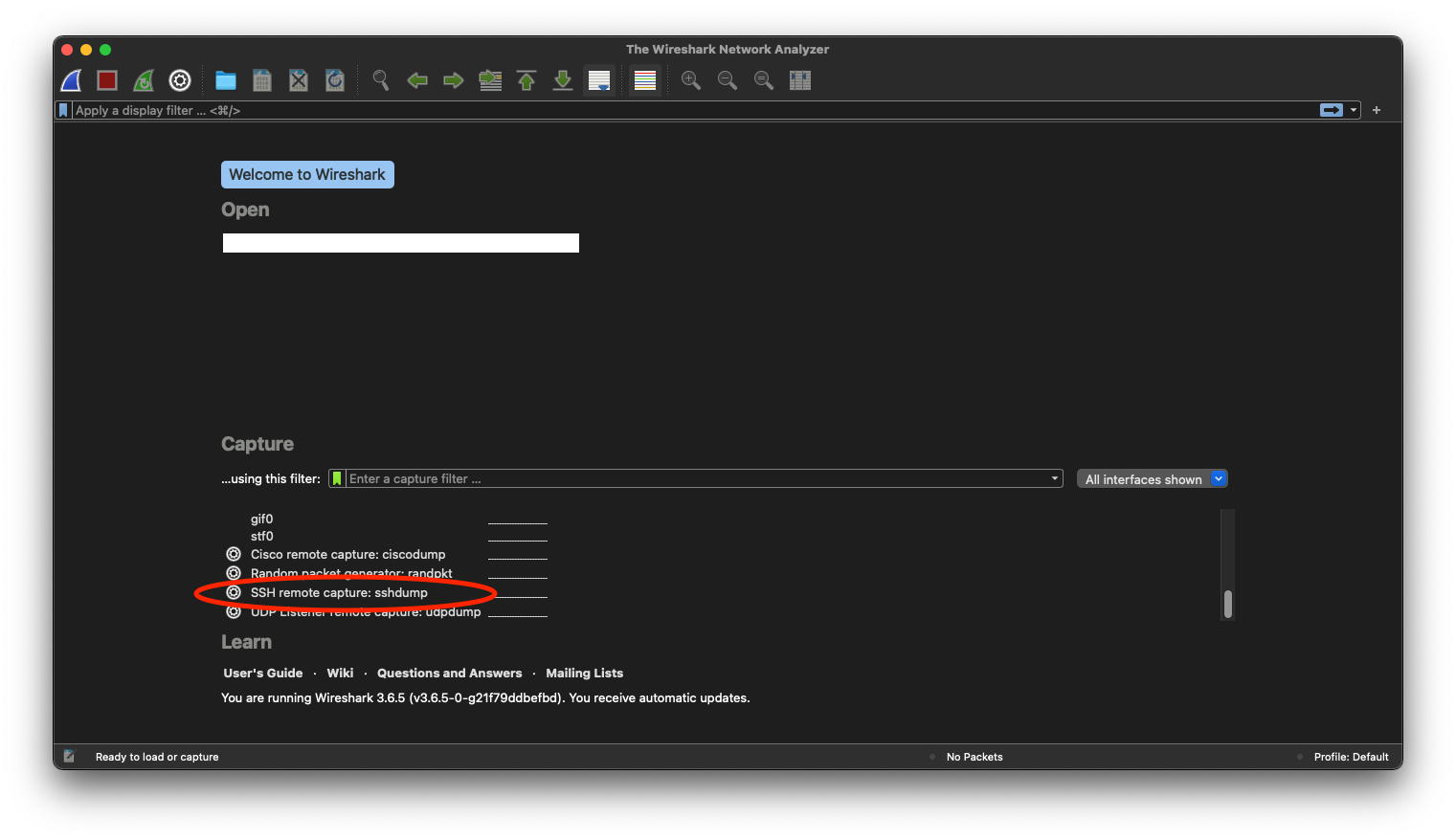
Clicking the small gear next to the interface will show a pop up and allow configuration.
- In the Server tab, Remote SSH server address is the IP address of your Unifi AP. The Remote SSH server port should be 22 unless configured otherwise.
- In the Authentication tab, just configure the username and password fields with the credentials we extracted from the Unifi Controller above.
- Last, in the Capture tab, make sure you change the Remote Interface to br0. When using VLANs, you’ll see additional bridge interfaces created on the AP. For example, if using VLAN 10 for WiFi network traffic, instead of monitoring *br0, monitor br0.10. It’s helpful to SSH directly into the AP and run
ip linkto see what’s available. If you get the wrong interface, some packets will be logged, but likely not the ones you’re looking for.
After setting that up, remote packet capture should be active, and all packets passing through the AP are logged in the local Wireshark interface.